Presentations may be parameterized through targets - which is an variation of the "filter" mechanism. When content is loaded directly, either through URL loading or through iframe embedding, it is often convenient to allow users to change the targeted item's values using external input. This process is known as external parameterization.
Direct URL Loading
To parameterize a presentation, start by adding a Target and then create an interaction between the target and the relevant visual.
Parameterize the presentation's URL for direct content loading, using the following syntax:
{YourPyramidSite}/direct/?id={content identifier}&target[Target Name]=[Dimension].[Hierarchy].[Member]:[Dimension].[Hierarchy].[Member]The following simple example pushes the countries France and Germany to the target Product Category on launch:
{YourPyramidSite}/direct/?id={content identifier}&target[Product Category]=[customers].[Country].[France]:[customers].[country].[Germany]Cube and BW Targets
If you are parameterizing a target that is interacting with a visual from an MS OLAP, Tabular, or BW data source, you need to add the appropriate flag to the URL after the target's name.
MS OLAP / Tabular
If the target connects to a visual from a cube model, add ":MS" after the target's name: "&target[Target1:MS]="
https://eg.pyramdanalytics.com/direct/?id=direct?id=134fd567-d6e3-4b8e-9484-b720d4e39a17&target[Target1:MS]=[customers].[Country].[France]SAP BW
If the target connects to a visual from a BW model, add ":BW" after the target's name: "&target[Target1:BW]="
https://eg.pyramdanalytics.com/direct/?id=direct?id=134fd567-d6e3-4b8e-9484-b720d4e39a17
&target[Target1:BW]=[customers].[Country].[France]
Embedded Content
Use JavaScript to parameterize an embedded presentation:
var target = {
	name: 'Target 1',
	filters: [
		{ value: '[customers].[country].[France]' },
		{ value: '[customers].[country].[Germany]' },
	],
	olap: false
}

var params = {
	targets: [target]
}
Example: Embed Presentation
//embed the presentation in the container

var countryFilter = { value: '[customers].[country].[France]' };
var target = { name: 'Target 1', filters: [countryFilter], olap: false };

pyramid.embed(document.getElementById('myDiv')), {
	id: "f8d66c64-893b-43fc-8049-e9b710ec90f9",
	host: "https://mysite",
	contentType: "storyboard",
	params: { targets: [target] }
});
Example: Add Filters and Targets
//use two filters and two targets

const filter1 = Filter.create().addUniqueName('MEMBER_UNIQUE_NAME');
const filter2 = Filter.create().addUniqueName('MEMBER_UNIQUE_NAME');
const target = Target.create()
	.add(filter1, 'Target1' /* targetName */, false /* isOlap */)
	.add(filter2, 'Target2' /* targetName */, false /* isOlap */);
embedClient.embed(container, {
	contentId: 'eb84f0af-f996-4850-a5ed-795d5af78513',
	targets: target,
});
Target Parameterization Examples
The basic syntax of the URL is as follows:
{YourPyramidSite}/direct/?id={content identifier}
&target[Target Name]=[Dimension].[Hierarchy].[Member]:[Dimension].[Hierarchy].[Member]
Note: The unique names are presented as a colon-separated list. In this case, two Members are being fed to the target with the name "Target Name."
Example 1: Push France and Germany to Country Target
The example below will filter the target visuals in the presentation according to the &target called 'Country', by the member elements 'France' and Germany':
https://eg.pyramdanalytics.com/direct/?id=direct?id=134fd567-d6e3-4b8e-9484-b720d4e39a17
&target[Country]=[customers].[Country].[France]:[customers].[country].[Germany] Example: Target Parameterization Using a Single Target
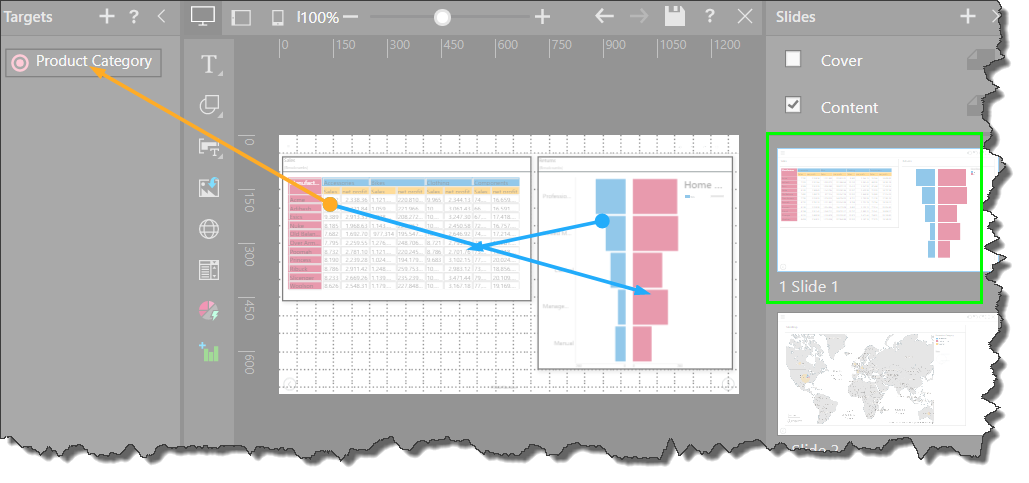
Here, an interaction was added from the grid on Slide 1 to the target called Product Category:
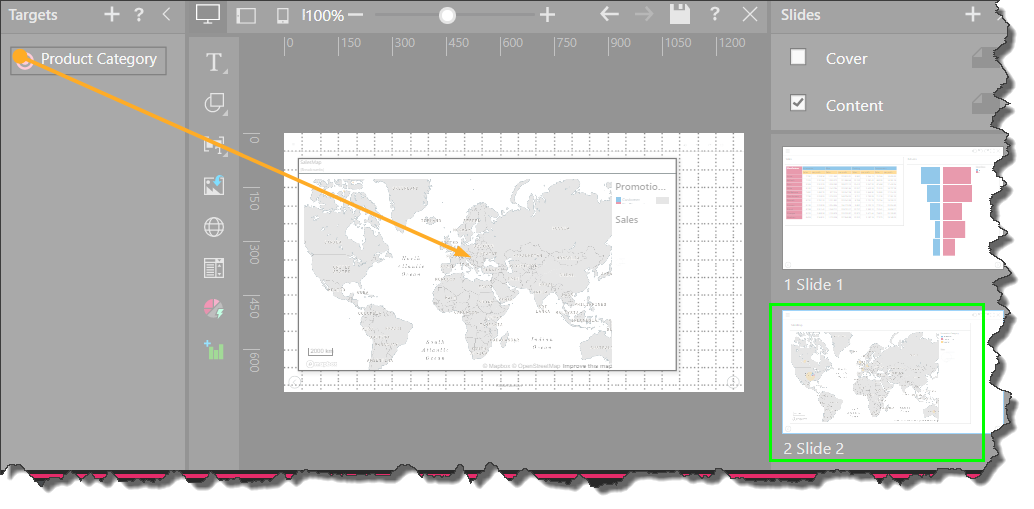
Next, an interaction was added from that target to the map on Slide 2:
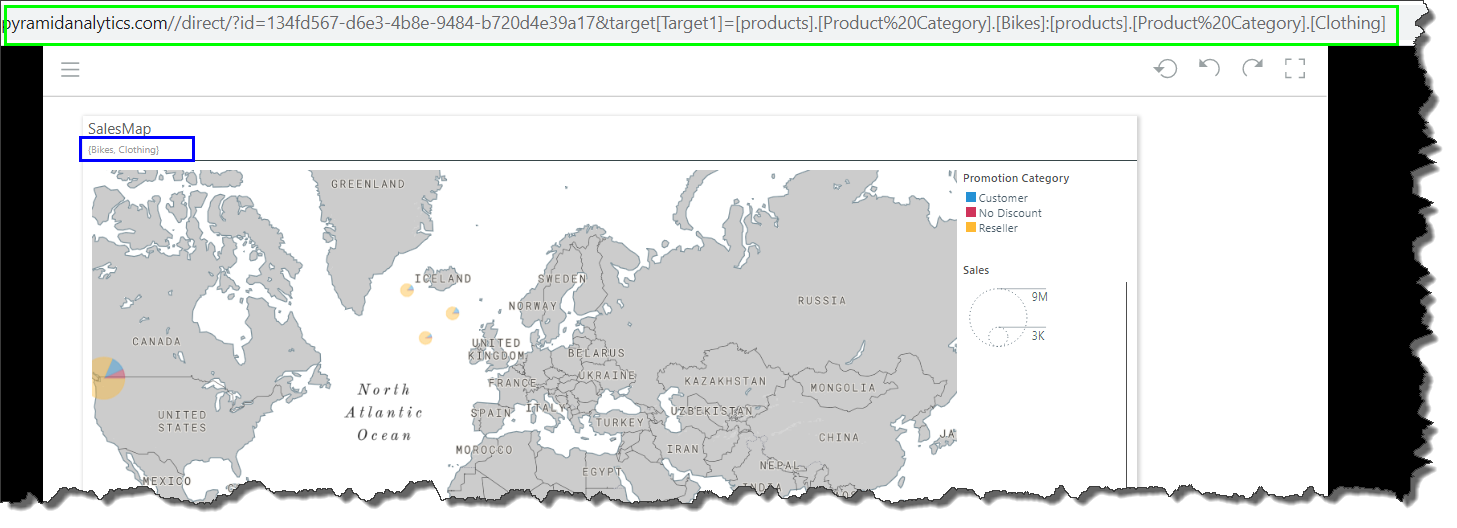
The following URL was entered, feeding the Product Category filter with the elements Bikes and Clothing, causing the visual to be filtered (blue highlight below):
https://eg.pyramdanalytics.com/direct/?id=direct?id=134fd567-d6e3-4b8e-9484-b720d4e39a17
&target[Product Category]=[products].[Product Category].[Bikes]:[products].[Product Category].[Clothing]
Example 2: Multiple Targets
A separate target is required for each hierarchy that will be used to filter the target visual. However, multiple member elements can be used as a filter for each target, as long as each member element belongs to the same hierarchy.
In the example below, the target visual will be filtered by two targets: Product Category and Manufacturer. The target called 'Product Category' will be used to filter by the 'Bikes' element (from the Product Category hierarchy), while the target called 'Manufacturer' will be used to filter by the 'Acme' element (from the Manufacturer hierarchy).
https://eg.pyramdanalytics.com/direct/?id=direct?id=134fd567-d6e3-4b8e-9484-b720d4e39a17
&target[Product Category]=[products].[Product Category].[Bikes]
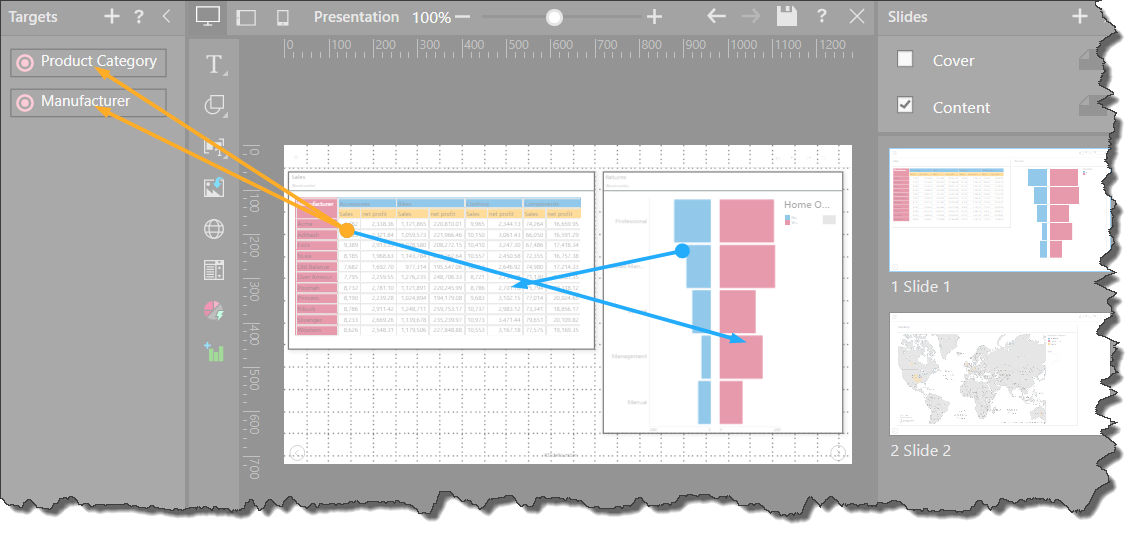
&target[Manufacturer]=[manufacturers].[Manufacturer].[Acme]Here, two targets were added: Product Category and Manufacturer. An interaction was added from the grid on Slide 1 to each of the targets:
Next, an interaction was added from each target to the map on Slide 2:
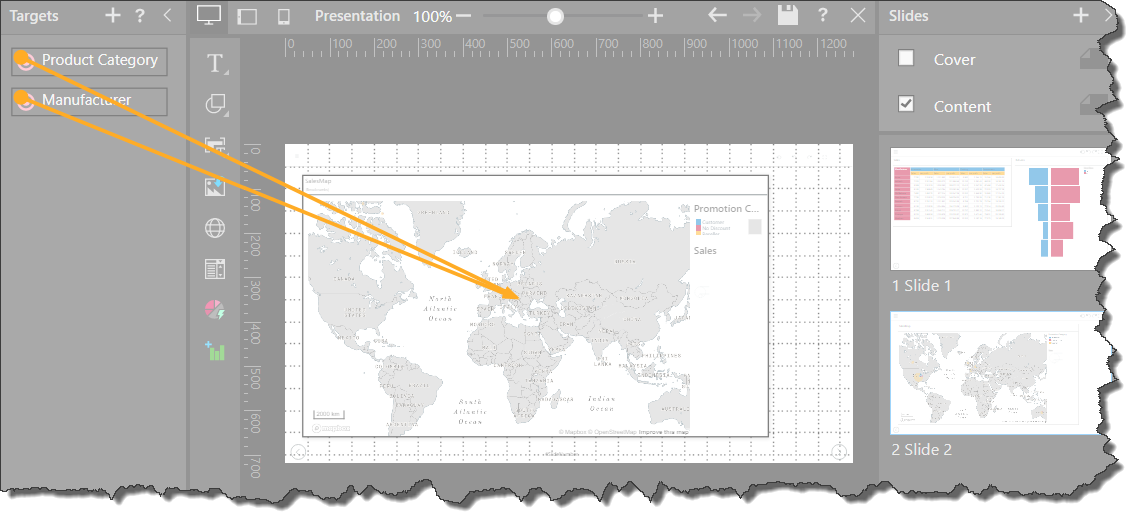
The following URL was entered, filtering the visual by the elements the 'Acme' element from the Manufacturer hierarchy, and the 'Bikes' element from the Product Category hierarchy:
https://eg.pyramdanalytics.com/direct/?id=direct?id=134fd567-d6e3-4b8e-9484-b720d4e39a17
&target[Product Category]=[products].[Product Category].[Bikes]
&target[Manufacturer]=[manufacturers].[Manufacturer].[Acme]

Example 3: Initialize Visuals using PQL functions
Pyramid supports using PQL functions in URL parameters. This example initializes the presentation visual for a selected date range on launch. Date range parameters (defined using PQL) are passed to the target as part of the URL:
https://eg.pyramdanalytics.com/direct/?id=direct?id=134fd567-d6e3-4b8e-9484-b720d4e39a17
&target[DateRange]=%7B[data].[dateKey%20full%20quarter]:SET:%7BRange([data].[dateKey%20full%20quarter].[Q1%202010],[data].[dateKey%20full%20quarter].[Q4%202010])%7D%7D
It is important to note that the {braces} that are required to define this range need to be escaped for use.
Tip: Filtering in this manner is not limited to dates. You can build a PQL expression in Formulate (or otherwise) and use the &target query string to inject the resulting data into the URL. For more information, see Formulate.
Example: Target Parameterization with a Date Range
Since we want to initialize the visual for a particular date range, from 30-Dec-2010 to 31-Dec-2010, we need to add a Target to the presentation that will be used "feed" our date range to the visual. In this case, the target is called DateRange and the defined interaction flows FROM the target TO the visual:
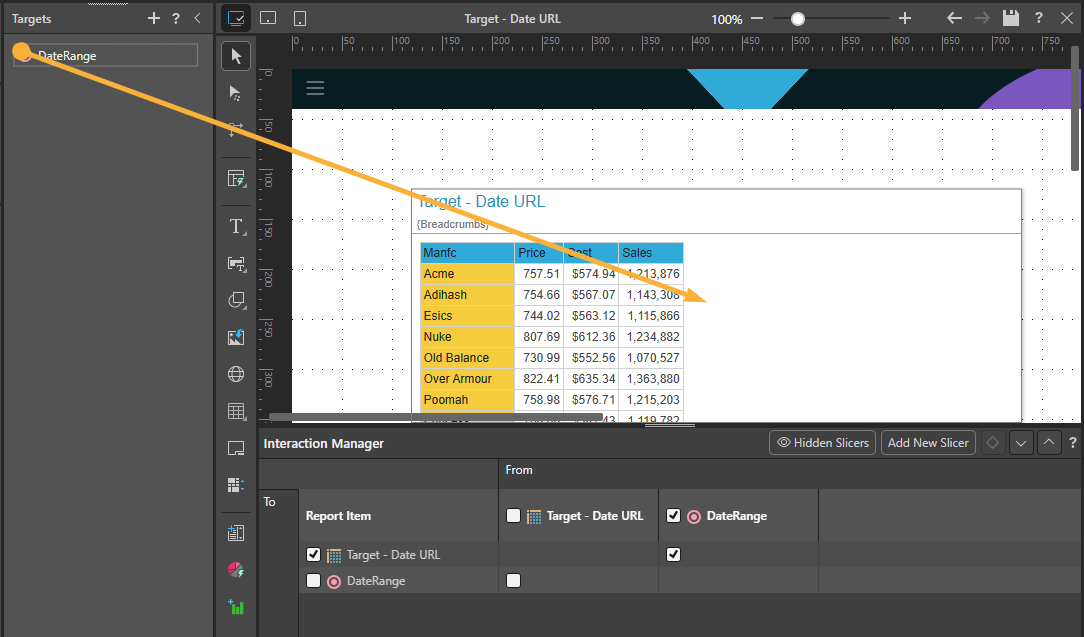
To create a range and add it to the &target query parameter instead:
&target[DateRange]=%7B[data].[dateKey%20full%20quarter]:SET:%7BRange([data].[dateKey%20full%20quarter].[Q1%202010],[data].[dateKey%20full%20quarter].[Q4%202010])%7D%7DThe data passed to the DateRange target is a PQL expression with the following details:
- The example creates a custom set containing a date RANGE.
- The syntax for the expression is
[table].[column]:SET:{syntax}. - The start and end dates in the range are selected from the model using the Range function:
- The start and end dates for the range are separated by a comma.
- The unique name is used for each (in this case, Q1 2010 to Q4 2010).
- The full range is contained within
{braces}, which need to be escaped using the standard escape characters %7B and %7D.
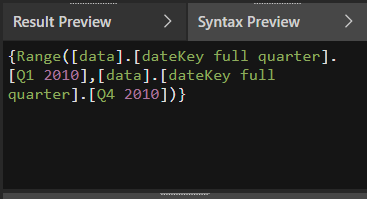
Note: The preceding screen shot shows the Syntax preview when creating a Range List in Formulate. This formula shown in this preview can be manually copied into your URL as required. For more information, see Building a List in Formulate.
When the presentation is launched using a URL with the previous filter, the visual is filtered to include data from the date range from Q1 2010 to Q4 2010. The column used for filtering is described in the breadcrumbs (blue highlight below):
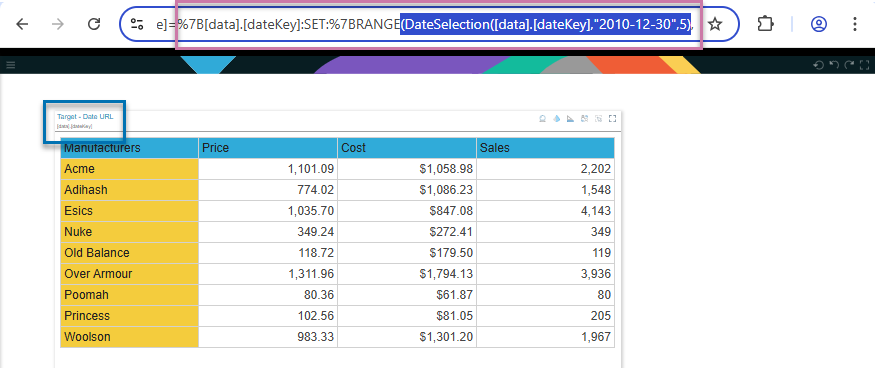
Note: Certain URLs may not work due to special characters in the URL parameter values. To ensure proper functionality, these parameter values must be URL-encoded.
Related information
Direct URLs to Discoveries
If your URL points to a discovery, you need to change from the &target shown above to the &filter approach.
- Click here for more about Filter Parameterization